
List of supporting documents required for registration
- Certificate from the institution (mandatory)
- Latest payslip of the paying parent (mandatory)
- Working time less than 100% (proof of the work pattern)
- In the event of divorce (the divorce decree and supporting financial documents)
- Second member of the household’s latest payslip/other supporting document or self-declaration “single-parent family” (mandatory)
- Copy of the vaccination card or a self-declaration stating that the child is not vaccinated
For more details, please see this page.
1. Proceed with enrolment
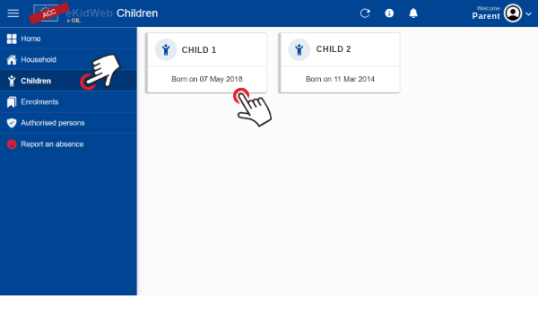
On the home screen, click on "Children", then click on the name of the concerned child.
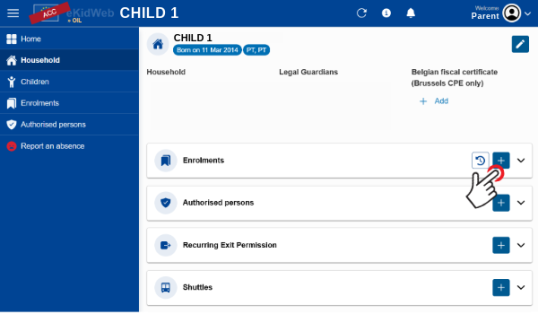
On the "Enrolments" line, click on the "+" sign: New enrolment
Check the box corresponding to the chosen enrolment type:
Année scolaire + Droit vacances 20xx-20xx
OR
- Droit vacances 20xx
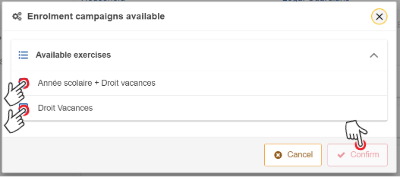
The choice "Année scolaire + Droit vacances" includes enrolment for the school year as well as the right to enrol during the European School's holiday periods.
The choice "Droit Vacances" allow enrolment to the CPE during the European School's holiday periods.
3. Enrolment process
New enrolment in 6 steps to complete:
- School and site
- Attendance (this step does not appear in case of enrolment "holiday right")
- Optional services
- Consents
- Documents
- Medical
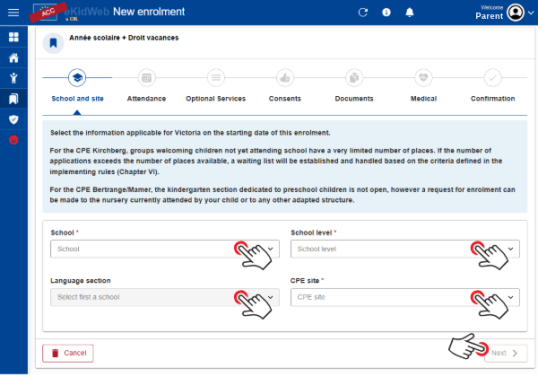
Review each step one by one, filling in the fields with the requested information and validate by clicking "Next".
3.1 School and site
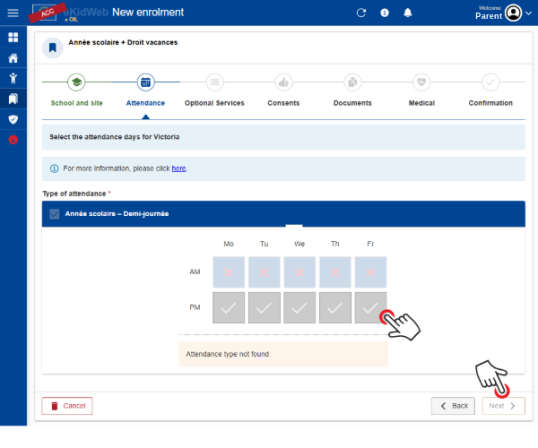
3.2 Attendance
- /!\ Tick the selected days of attendance (they can be modified at any time during the school year)
- Click Next
3.3 Optional services
- Confirm having take note of the information provided
- Click on "Next"

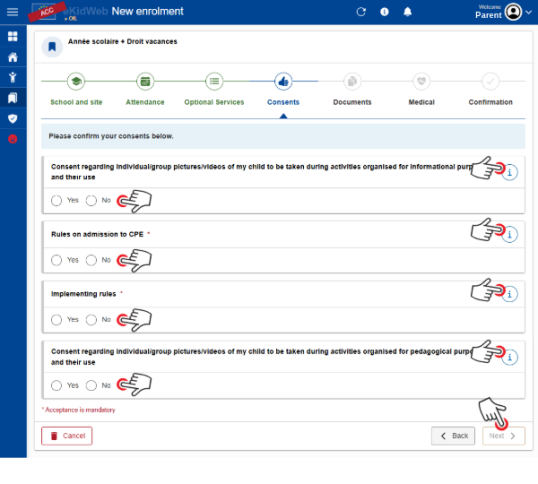
3.4 Consents
- Complete the fields related to photo consents, CPE rules on admission, and implementing rules
- /!\ Please read the informative text in each informative bubble in the 4 consents.
- Click on "Next"
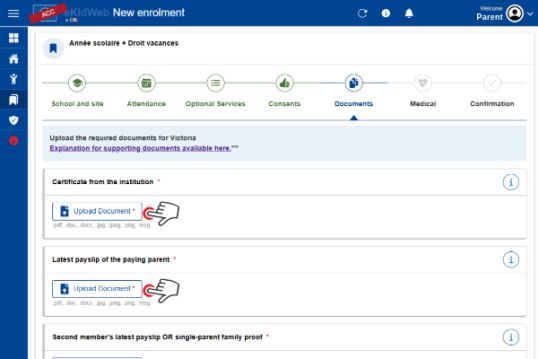
3.5 Documents
- Click on "Upload a document" to upload the required documents for your child's enrolment.
- Check the list of supporting documents for more information.
- Click on "Next"
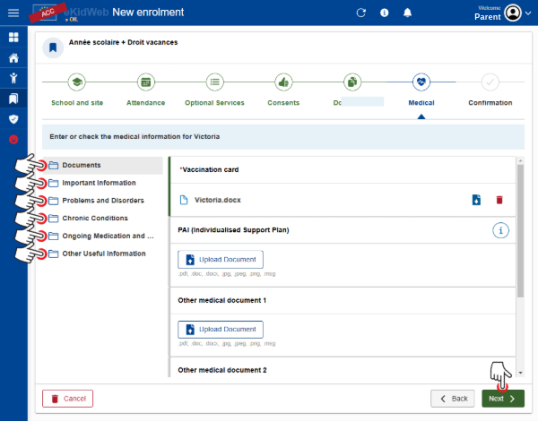
3.6 Medical
- Click on "Upload a document" to download your child's medical documents
- In the subfolders, open the files one by one and fill in the information.
3.7 Confirmation
- Check the registration data that appears on the screen
- If the data is correct, click "Confirm", otherwise click "Previous" to modify the information.
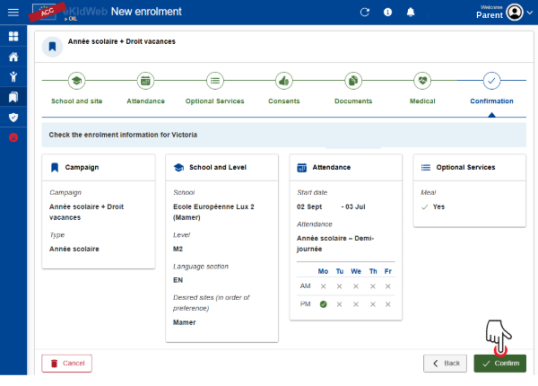
- End of the procedure and submission of the application to the administration of the CPE
- Receipt of a confirmation message, a refusal or placement on a waiting list
/!\ In case of missing document or additional question on the file, the CPE administration will contact you.
Possibility to follow the progress of the registration file by clicking on "Child" on the home page.