
Recurring exit permissions allow children to:
- Leave the CPE alone, for example to go home, attend an extracurricular activity or take a bus.
- Leave and return to the CPE alone, for example to attend an extracurricular activity or a weekly appointment.
- Arrive later at the CPE, alone or accompanied, for example after an extracurricular activity or a weekly appointment. In this case, the child is not picked up from school by the CPE.
Important information
Notice periods: Exit permissions must be submitted at least two working days before their start date. Deletions require one working day's notice.
School holidays: Recurring exit permissions do not apply during school holidays.
One-off exit permissions: Please contact the administrative team of the relevant CPE site by email.
Schedules: The agreed schedules must be strictly respected.
If your child attends an APEEEL activity, please check the arrangements for their site and childcare structure before submitting a permission request.
For the Bertrange/Mamer site, please consult the specific arrangements for Mamer – CPE5.
For the Kirchberg site, please consult the document Activities vs CPE.
How to add a recurring exit permission in eKidWeb
- Click on “Children”, then select your child’s name.
- Go to “Recurring Exit Permission” and click on “+”.

- Select the type of permission.
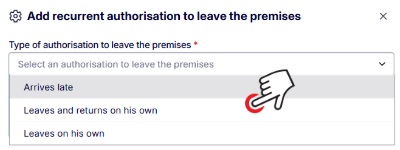
- Complete the fields marked with an asterisk (*).
- Click on “Confirm”.
Which type of permission should you select?
| Level and site | Option 1: “Quitte seul le CPE” (Leaves the CPE alone) | Option 2: “Quitte et revient seul au CPE” (Leaves and returns to the CPE alone) | Option 3: “Arrivée tardive” (Late arrival) |
Garderie (GA) Preschool–M2 | Not permitted for children in this age group. | Not permitted for children in this age group. | The child arrives later at the CPE, no later than 6 p.m., accompanied by an authorised person.* |
Study and Recreation Centre (CEL) – Primary (P1–P5) | The child leaves the CPE alone and does not return that day. | The child leaves the CPE alone and returns alone, no later than 6 p.m. | The child arrives later at the CPE, no later than 6 p.m., alone or accompanied.* |
Study and Recreation Centre (CEL) -Secondary (S1–S3) | Permission required. The child leaves the CPE alone and does not return that day. | Permission required. The child leaves the CPE alone and returns alone later. | Permission required. The child arrives later at the CPE, alone or accompanied.* |
Study and Recreation Centre (CEL) – Secondary (S1–S3) Kirchberg | No exit permission required. Children must identify themselves to the security guard when leaving. | No exit permission required. Children must identify themselves to the security guard when leaving and returning. | No exit permission required. Children must identify themselves to the security guard on arrival. |
* Register any person authorised to drop off your child (a third party or APEEEL staff member) in the “authorised persons” menu in eKidWeb. For guidance, see the Authorised persons help page.
How to delete a recurring exit permission in eKidWeb
- Click on “Children”, then select your child’s name.
- Go to “Recurring Exit Permission”.
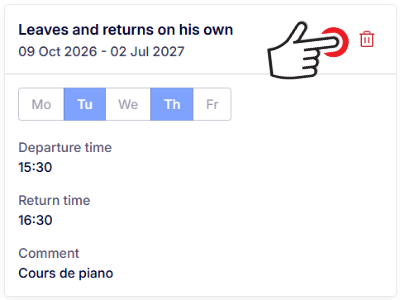
- On the card for the permission concerned, click on “Delete”.
Deleting an exit permission sets its end date to the first working day following the deletion request.
How to change a recurring exit permission
An existing exit permission cannot be edited. To change it, delete it and create a new permission with the correct details, following the steps above.